


PDF Reader - PDF Converter
4.1199.00 Reviews
App Specs
- Version
- 4.9.8
- Updated On
- License
- Free
- Downloads
- 10,000,000+
- Developer
- iKame Applications - Begamob Global
- Categories
- Productivity
- Platform
- Android
Screenshots
 Analysis by AppCompare
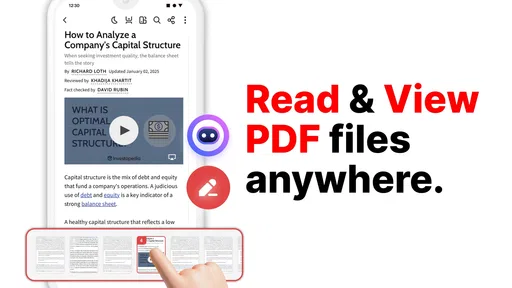
I often need to check a document while I’m away from my computer, and that is where a dedicated PDF tool can earn a place on my phone. PDF Reader - PDF Converter is aimed at that everyday mix of reading, converting and editing, rather than just opening a file and leaving the rest of the job for another app. I’d consider it most useful when I want to handle a few document tasks in one place, while keeping in mind that a phone is still not the best workspace for every kind of editing.
What to expect when opening documents
For a PDF app, speed is not only about how quickly a file opens. It also means being able to find the page I need, read comfortably, and move on without losing my place. I would judge this app by those practical moments, especially when I’m checking a document between other tasks. A focused reader is helpful when the alternative is hunting through a general file manager and switching between separate tools.
Large or image-heavy documents are a different test from a short text file. On a phone, zooming and moving around a scanned page can feel less fluid than reading ordinary text, and conversion or editing adds more work than simply viewing. I wouldn’t assume every document will feel equally light. If I’m dealing with a long report, I’d open it before I need it, check that the important pages display as expected, and avoid leaving a time-critical conversion until the last minute.
Where an all-in-one workflow helps
The app makes the most sense when a document moves through several small steps: open it, inspect it, make a change, then share or convert it. Keeping those tasks together can save the friction of passing the same file between a reader, an editor and a converter. That convenience matters more to me than having a long list of tools I may rarely use.
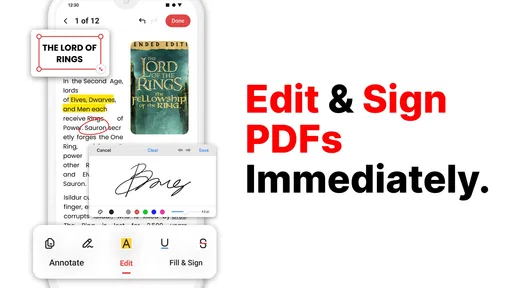
A realistic example is receiving a form while commuting. I can review the text on my phone, mark a point that needs attention, and decide whether I should send the PDF onward or work with another format later. If a signature or annotation is appropriate, doing it on the device can avoid printing simply to add a brief mark. For a document that needs careful wording or a substantial rewrite, though, I’d still prefer a keyboard and a larger screen.
Choosing the right conversion moment
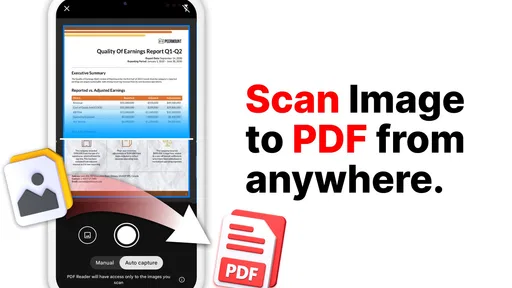
Converting a file is useful when someone needs to work with its contents in a different format, but conversion is not a guarantee that every layout will transfer perfectly. Tables, columns, unusual fonts and scanned pages can be more demanding than a simple text document. My practical advice is to check the converted result before relying on it, especially if the appearance or exact wording matters.
I’d also keep the original PDF until I have checked the new file. That gives me a straightforward fallback if the conversion changes spacing or makes a page harder to read. For a quick handoff or a document with a simple layout, an in-app converter can be convenient; for a complex report where formatting is critical, a desktop editor or a tool designed for that specific format may be the safer choice.
Worth Reading Before You Choose

EA SPORTS FC Mobile 26 Is a Bigger Football Game, but It Takes Time

Flipboard Shows What News Apps Must Do Beyond the Feed

Switching to Android Auto Means Rethinking Your Driving Routine

Google Calendar Makes a Crowded Week Easier to Manage

Ludo King Makes the Most of the Minutes Between Plans

Baby Panda World Brings Quick Play to Modern Phones, but Its Game Library Feels Busy
Who will get the most from it
I can see this being a good fit for students reviewing handouts, people who receive forms by email, and anyone who occasionally needs to annotate a document while away from a desk. It is also appealing if you would rather not keep separate apps for basic reading and document tasks. Someone who handles PDFs only once in a while may be just as well served by the reader already on their phone, while frequent professional editing may call for a more specialized desktop workflow.
The distinction is not simply casual versus professional use. It is about the kind of work. If my day involves checking pages, adding a few notes and converting straightforward files, an all-round mobile app can be practical. If I need to revise a lengthy contract line by line, compare several versions or preserve a complicated layout, I would choose a larger-screen editor and treat the phone as a review tool rather than the main workstation.
How it compares with familiar options
Most people already have some way to preview PDFs, whether through a built-in file viewer, a browser or a cloud-storage app. Those options are often enough for opening and reading a file, so installing another app only makes sense if the extra document workflow is useful to you. The appeal here is having reading and conversion or editing tasks gathered in one place, rather than needing to move between basic viewing and separate utilities.
That bundled approach has a trade-off: an all-in-one tool may be convenient, but it won’t necessarily be the best choice for every specialized job. A cloud drive can be more natural when the main task is organizing and sharing stored files; a word processor is better when the real work is composing or extensively revising text. I’d choose this app for mixed, phone-sized PDF tasks, not as a replacement for every document tool I use.
Why I Decided to Give It a Try
Initially, I was skeptical. I mean, how many PDF apps does one really need? But, curiosity got the better of me, and I decided to install it. The download was quick, and before I knew it, I was exploring its features. This app didn’t just promise to open PDFs—it offers a suite of tools to manage, convert, and even edit them. Intriguing, right?
Discovering Its Features
The first thing I noticed was the clean and user-friendly interface. It’s like the developers really understood that not everyone is tech-savvy. Navigating through the app was a breeze, and everything was exactly where I expected it to be.
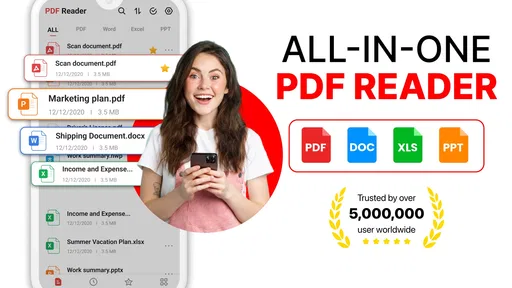
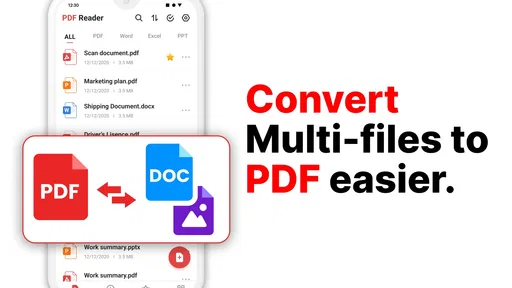
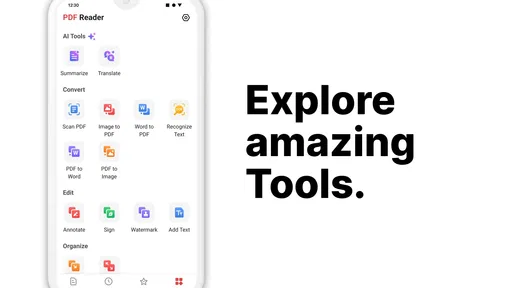
Now, let’s talk features. PDF Reader - PDF Converter doesn’t just stop at reading PDFs. It allows you to convert them into different formats, like Word, Excel, or even image files. This is particularly handy when I need to make quick edits or share documents with colleagues who prefer other formats. The conversion process is surprisingly fast and keeps the formatting intact, which is a huge plus.
Editing on the Go
One of my favorite features is the editing capability. I can highlight text, add annotations, and even insert my digital signature. As someone who deals with contracts and documents regularly, this feature saves me a lot of time. No more printing out pages just to sign them!
The app also supports cloud integration with services like Google Drive and Dropbox, making it super easy to access my files anywhere, anytime. I’ve lost count of how many times this has saved me from last-minute scrambles.
Performance and Reliability
Performance-wise, this app is solid. I haven’t experienced any crashes or glitches, which is more than I can say for some other apps I’ve tried. It opens large files quickly and doesn’t hog my phone’s resources, so I can multitask without a hitch.
Another thing worth mentioning is the offline functionality. I can access and edit my files even without an internet connection, which is perfect for those times when I'm traveling and network coverage is spotty.
Practical checks before relying on a file
My main caution with any mobile document workflow is to check the result, not just the button press. After adding an annotation or signing, I’d reopen the saved document and confirm that the mark appears where I intended. That quick check is especially worthwhile before sending a form to someone else, since a small screen makes it easy to miss a misplaced mark or an overlooked page.
I’d use a similar habit with cloud-stored files: make sure I’m working on the copy I mean to change, then confirm the final version is available where I expect it. This is less about distrust of the app and more about avoiding a familiar document mix-up. When I’m in a rush, a clear file name and a final glance at the attachment can prevent sending an outdated draft.
Connectivity, offline work and recovery
Offline access is particularly useful for reading or making a small change when a connection is unreliable. I would still separate working on a local file from syncing or sharing it: being able to edit without internet does not mean a change has already reached a cloud account or another device. If the document needs to be available elsewhere, I’d reconnect and check that the intended copy is accessible before assuming the task is finished.
For important documents, I also prefer keeping an untouched original until I’m satisfied with the edited or converted copy. That simple habit makes recovery easier if I change the wrong file or decide that a conversion is not good enough. It is a sensible safeguard whether I’m using this app or another PDF tool, and it matters most when a form, contract or work document cannot be casually recreated.
Cost, audience and device fit
The app is free to install, with optional in-app purchases listed from $3.99 to $29.99 per item. I’d try the basic workflow first and only consider paying if a tool I genuinely need is part of a paid option. That is a better way to judge value than assuming every reader needs the full set of capabilities. It is rated for Everyone, so its stated age classification is broad, though sensitive personal documents still deserve sensible care on any shared device.
It comes from iKame Applications - Begamob Global, and its current version is 4.9.8. The release date is March 5, 2025, and it supports Android 7.0 or later. Those details make it easier to judge whether an older phone is eligible, but eligibility alone does not guarantee the same feel on every device. If storage or memory is tight, I’d keep expectations modest with bulky scans and close other demanding apps before doing a long document session.
Its audience numbers suggest it has reached plenty of Android users: it has more than 10 million installs, a 4.1 average rating from around 47,000 ratings, and 199 written reviews. I treat those figures as context rather than proof that it will suit my own workflow. The more useful question is whether I need its combination of reader and document tools often enough to justify another app on my phone.
Performance and Reliability
Performance-wise, this app is solid. I haven’t experienced any crashes or glitches, which is more than I can say for some other apps I’ve tried. It opens large files quickly and doesn’t hog my phone’s resources, so I can multitask without a hitch.
Another thing worth mentioning is the offline functionality. I can access and edit my files even without an internet connection, which is perfect for those times when I'm traveling and network coverage is spotty.
Final Thoughts
All in all, PDF Reader - PDF Converter has become an essential tool in my digital toolkit. It’s reliable, intuitive, and packed with features that cater to both casual users and professionals alike. If you’re tired of juggling multiple apps to manage your PDF needs, I highly recommend giving this one a shot. It’s definitely streamlined my workflow, and I bet it’ll do the same for you.
So, there you have it—my take on a must-have app for anyone who deals with PDFs regularly. Go ahead, download it, and see for yourself!
Pros
- Easy-to-use interface simplifies navigation.
- Supports multiple file formats beyond PDF.
- Fast conversion speeds for large documents.
- Annotation tools enhance document editing.
- Offline access allows work without internet.
Cons
- Limited free version features.
- Ads can interrupt the user experience.
- Occasional lag with large files.
- Premium features require subscription.
- User interface can feel outdated.
FAQs for PDF Reader - PDF Converter
What features does PDF Reader - PDF Converter offer?
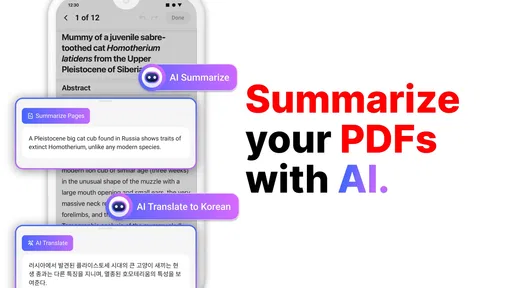
PDF Reader - PDF Converter offers a range of features including viewing, editing, and annotating PDF documents. It also supports converting various file formats to PDF and vice versa. Users can merge, split, and compress PDF files, making it a versatile tool for both personal and professional use.
Is PDF Reader - PDF Converter available for both Android and iOS?
Yes, PDF Reader - PDF Converter is available on both Android and iOS platforms. This ensures that users across different devices can access and use its features seamlessly. The app is optimized for performance on both operating systems, providing a consistent experience.
Does the app support cloud storage integration?
Yes, PDF Reader - PDF Converter supports integration with popular cloud storage services such as Google Drive, Dropbox, and OneDrive. This feature allows users to easily access and manage their documents from anywhere, ensuring that they can work on their files on-the-go without any hassle.
Are there any in-app purchases or subscription fees?
While PDF Reader - PDF Converter offers a free version with basic features, there are in-app purchases and subscription options available for users who need advanced functionalities. These may include additional editing tools, ad removal, and enhanced conversion capabilities, providing a more comprehensive experience.
How user-friendly is PDF Reader - PDF Converter for beginners?
PDF Reader - PDF Converter is designed with user-friendliness in mind, featuring a clean and intuitive interface. Beginners will find it easy to navigate through its features, with helpful tutorials and guides available within the app. It caters to users of all levels, ensuring a smooth learning curve.


